
Connect Retroboard to Slack
Slack is where your team already talks — decisions get made in channels, not in tools. The most common failure mode of retrospectives is that their outcomes never reach that conversation: action items agreed in the meeting quietly evaporate. Retroboard’s Slack integration closes that gap by posting your retro’s outcomes into the channel your team reads every day.
Setup takes about two minutes using Slack’s incoming webhooks — no app installs for your teammates, no permission reviews, and it works on every Slack plan, including free workspaces.
Jump to setup ↓What gets posted
Retro summaries
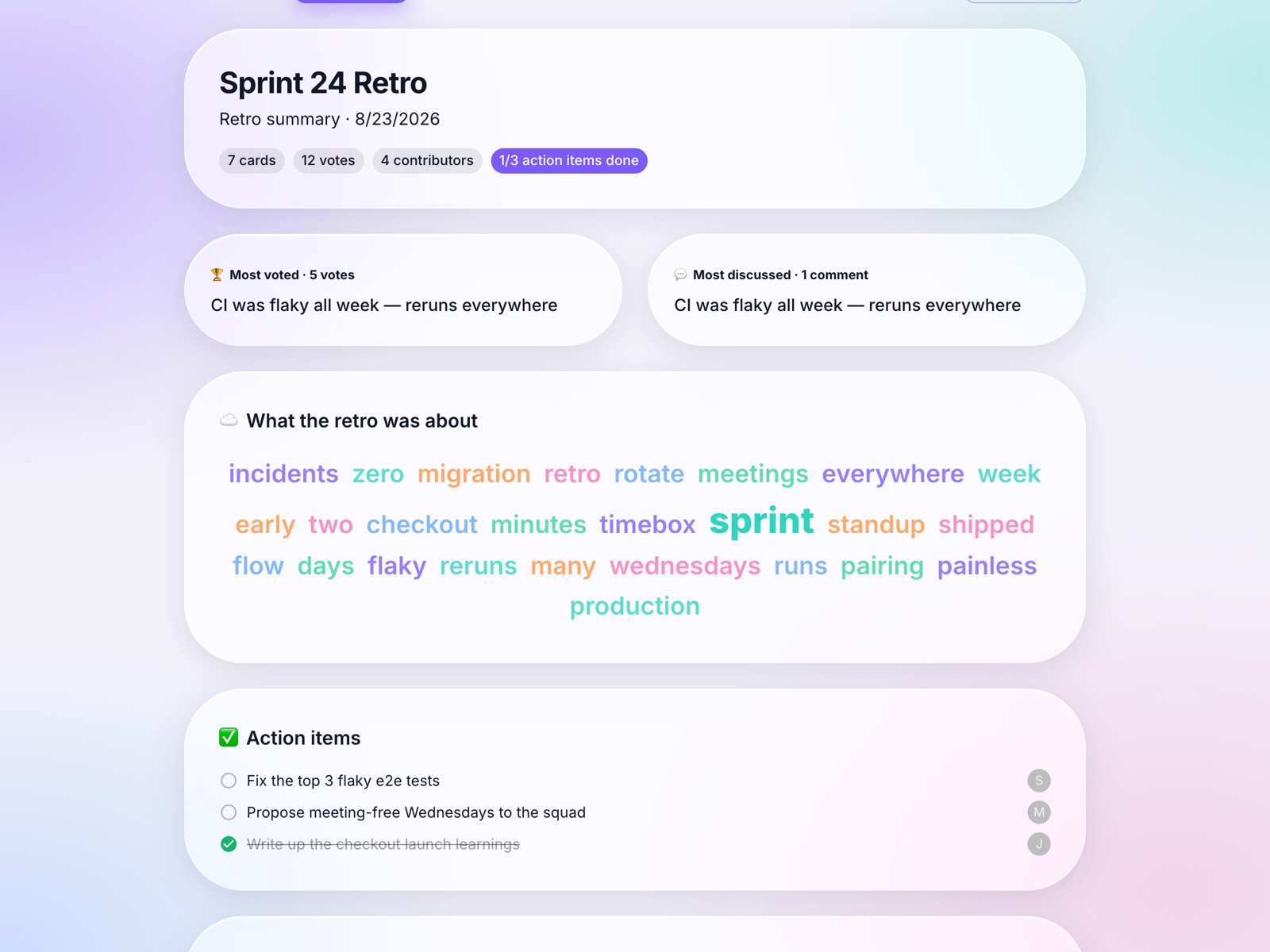
Every column with its cards sorted by votes, the action items with their owners, and survey results — one tidy message with an “Open the board” button.
New boards
When someone on the team starts a retro, the channel gets a heads-up with a join link — no more “what’s the board link?”
Retro completed
An optional closing note when the facilitator completes the retro.
Everything in the posted summary comes straight from the board — here’s the kind of retro it captures:
Set it up in two minutes
Create a Slack app for your workspace
Go to api.slack.com/apps and click “Create New App” → “From scratch”. Name it anything (e.g. “Retroboard”) and pick the Slack workspace your team uses. You need to be allowed to install apps in that workspace — if you aren’t, ask a workspace admin to do these steps.
Turn on Incoming Webhooks
In the app’s settings sidebar choose “Incoming Webhooks” and flip the toggle to On.
Add a webhook for your channel
Click “Add New Webhook to Workspace”, then pick the channel where retro summaries should land (for example #retros or your team channel) and click Allow.
Copy the webhook URL
Slack shows a URL starting with https://hooks.slack.com/services/… — copy it. Treat it like a password: anyone with the URL can post to that channel.
Paste it into Retroboard
Open your team page in Retroboard (Teams → your team), scroll to “Slack integration”, paste the URL and hit Save. Use the Test button to send a hello message and confirm it works.
Frequently asked
Does this work on free Slack plans?
Yes. Incoming webhooks work on every Slack plan, including free workspaces.
Who can set it up?
Any Retroboard team owner or admin — and anyone allowed to add apps in your Slack workspace can create the webhook.
Which channel do messages go to?
The one you picked when creating the webhook. Each Retroboard team has its own webhook, so different teams can post to different channels.
Can I choose which events post?
Yes — per team, toggle summaries, new-board announcements and retro-completed notes on the Integrations page.
Is the webhook URL safe with you?
It’s stored server-side and only ever shown to your team’s admins. Anyone with the URL can post to your channel, so treat it like a password.
That’s it — happy retros!
Sharing a summary from any of the team’s boards now posts it to your channel. Into Atlassian tools? Retros also export as pages with our Confluence integration.
Connect Slack